Your First Select
Now that you're oriented in the Snowflake workspace, you're ready to start querying data. This section covers the fundamentals of selecting data from tables. Even if you're familiar with SQL, understanding EDU's table structure and naming conventions will help you write effective queries.
Selecting columns from a table#
The most basic SQL query selects columns from a table. In EDU, tables are organized in a three-part hierarchy: database.schema.table_name. Most of your queries will start from tables in analytics.prod_wh.
Here's a simple example selecting student names from the student dimension:
This query:
- Selects the safe_display_name column (which includes the student's name and unique identifier)
- From the dim_student table in the prod_wh schema
- Limits results to 10 rows (a best practice while exploring)
Place Name in Editor#
To query a table, you need to specify the full path: database.schema.table. An easy shortcut is to find the table in the left navigation pane, click the three-dot menu next to its name, and select "Place name in editor." This automatically inserts the full path into your query editor.
Using limit while you explore#
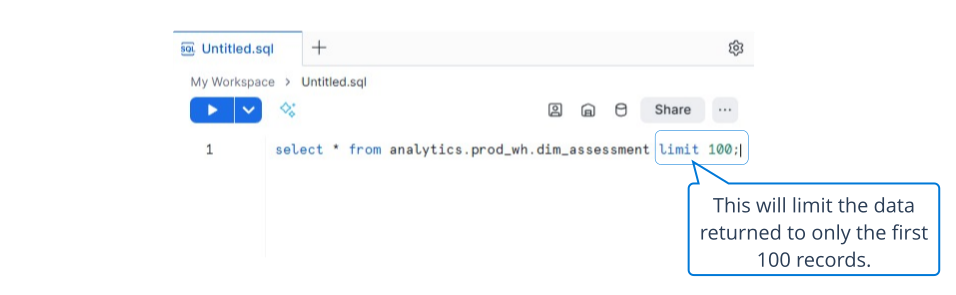
It's best practice to limit the number of rows returned while exploring or developing queries. Running queries without limits can slow down performance and even cause timeouts. Once your query is finalized for use in a dashboard, you can remove the limit to allow all data to display.
Wrapping up#
You now know how to select columns from tables and use limit to explore safely. These are the building blocks of every query you'll write.
In the next section, you'll learn to filter rows, group data, and order results—starting with filtering our student example to specific demographics.
Your Turn: Practice
Write a query that selects safe_display_name, grade_level, and school_year from analytics.prod_wh.dim_student, limiting to 10 rows. This gives you a preview of the data we'll be working with in the following sections.
« Overview