6. dbt Docs
Module 6: Stadium Documentation Site (dbt Docs)#
Overview#
Learn to navigate and use dbt documentation to understand table relationships, find data definitions, and explore the data lineage.
Learning Objectives#
By the end of this module, you will be able to:
- Access dbt documentation
- Navigate the dbt docs interface
- Search for tables and columns
- Understand table relationships through lineage graphs (DAG)
- Use dbt docs to write better queries
Accessing dbt Docs#
There are three ways to access dbt documentation:
1. Hosted Documentation (Recommended)#
Your organization may host dbt docs at a URL. Check with your administrator for the link, or login to https://portal.edanalytics.app and select the tile for 'Stadium Ed-Fi Documentation' (if your organization is a Stadium partner).
2. Public Demo Site#
If you don't yet have EDU deployed, but want to get a sense for what dbt Docs looks like, head to our demo version.
3. Local Documentation#
If you have dbt installed locally:
Then open your browser to http://localhost:8080.
This will be most helpful if you are a Developer and want to see live updates to the dbt documentation site.
dbt Docs Homepage#
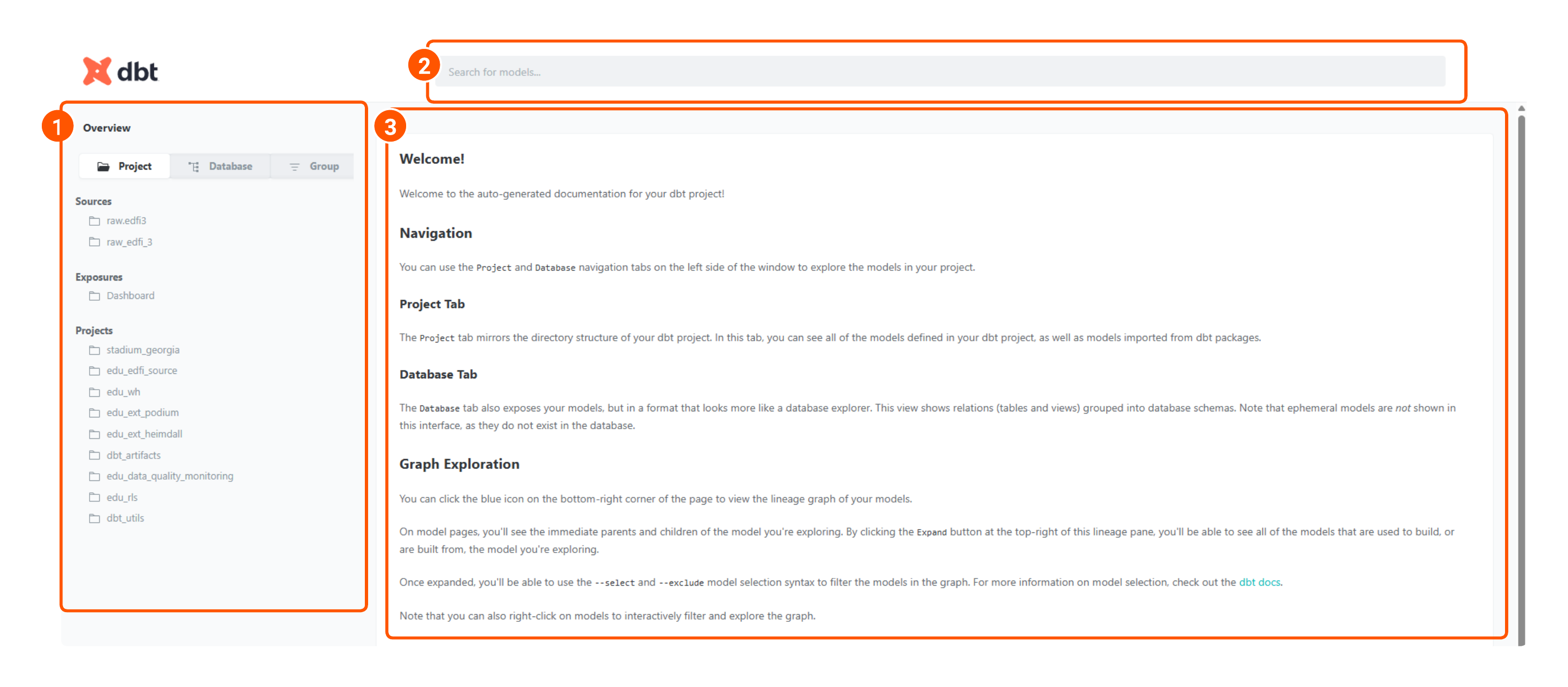
When you first open dbt docs, you'll see:
- 1. Overview (Left Navigation Bar) - Index of what's documented on the site
- 2. Search bar (Top middle) - Quickly search for tables, columns, and code
- 3. Welcome Message - Some auto-generated text that explains the site, and links to helpful resources, provided by dbt.
Navigating Tables#
There are two recommended paths toward finding a table and its associated documentation:
- Use the Database View (for clicking through the database in the same structure as you see in the Data Warehouse)
- Use the Search Bar (for quickly looking up a table you know the name of)
Database View#
Using the Left Navigation Bar, Click on Database, then choose the database, schema, and table, you're interested in. See Data Warehouse Overview for a refresher on the available databases and schemas.
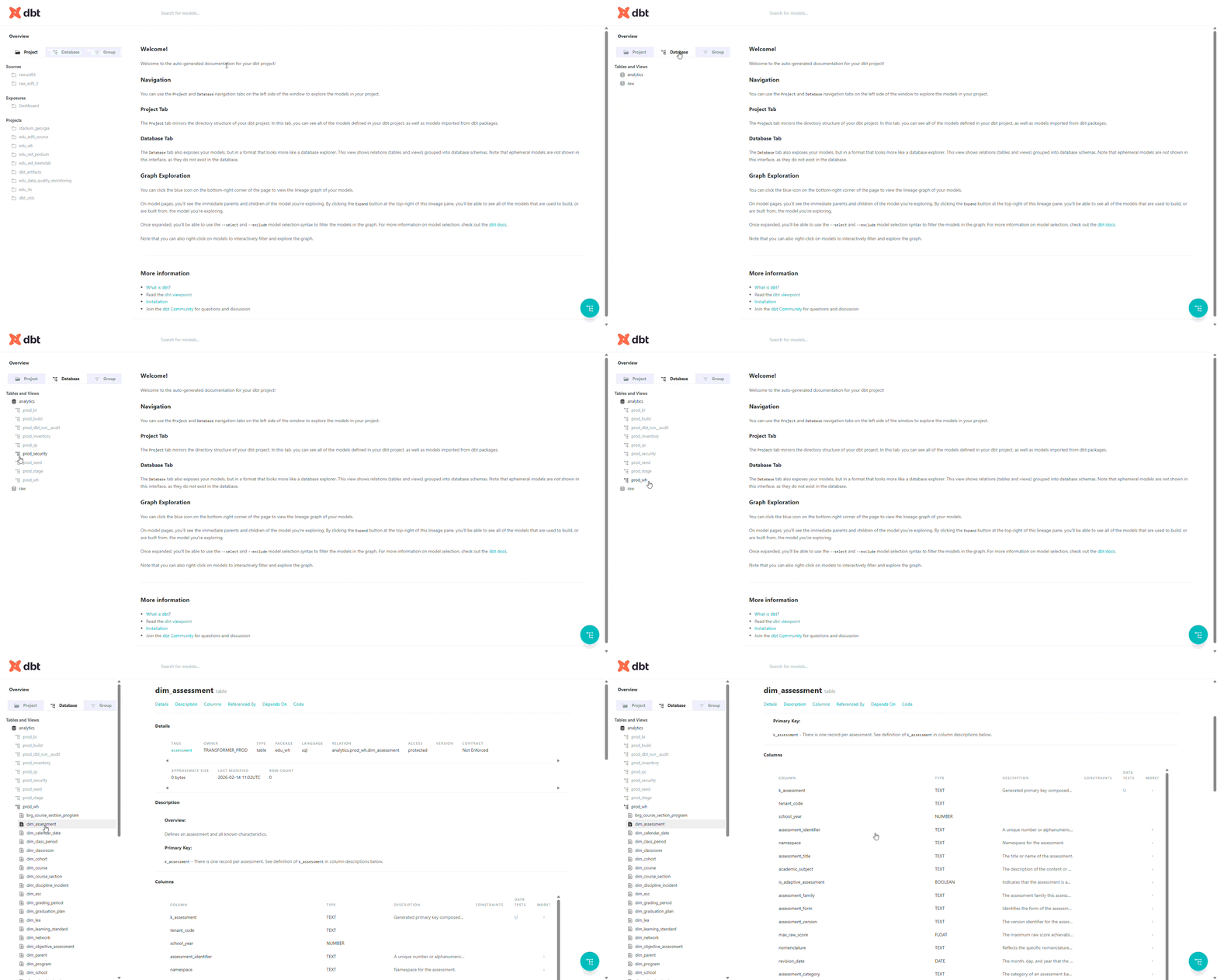
Click any table to view its details.
Searching#
Use the search bar at the top to find:
- Tables - Search by table name
- Columns - Search by column name
- Code - Search within SQL code
- Descriptions - Search documentation text
Search tips:
- Use filters to narrow results
- Search for column names to find which tables contain them

Table Overview Page#
When you click a table, you'll see several tabs:
1. Details Tab#
- Description - What this table contains
- Grain - What each row represents
- Metadata - When last run, row count, size
- Tags - Categorization tags
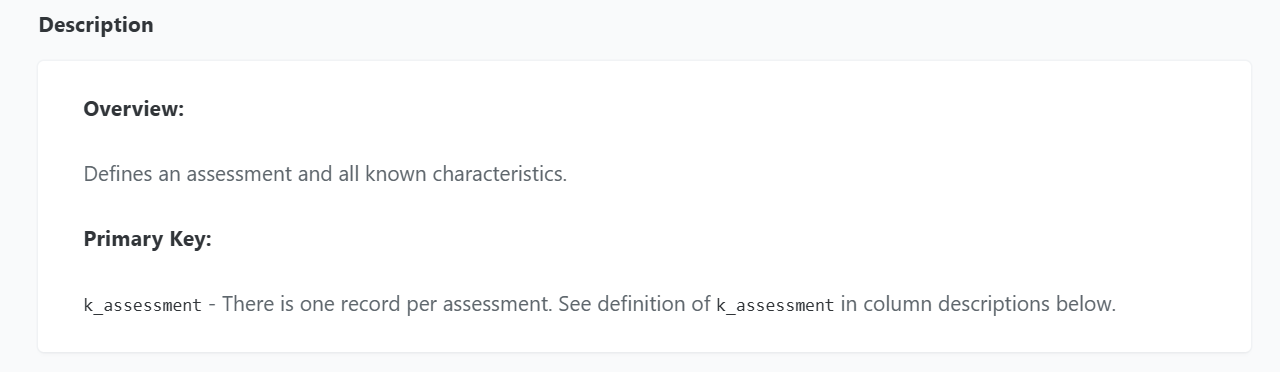
2. Description Tab#
Here's where you can find a quick description of the table, and often its Primary Key (use this when writing your joins!)
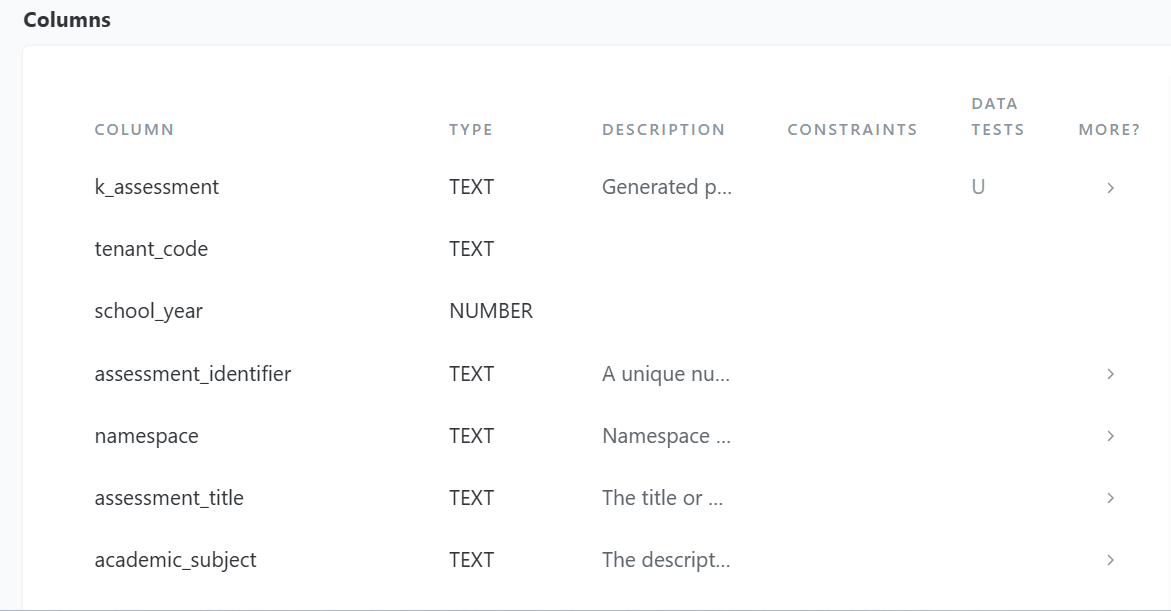
3. Columns Tab#
This tab lists all the columns in the table, and their metadata: - Column name - Data type - Description - Tests applied to the column
Understanding Your Data
Always read column descriptions before using them in queries. They often contain important notes about nullability, grain, and meaning.
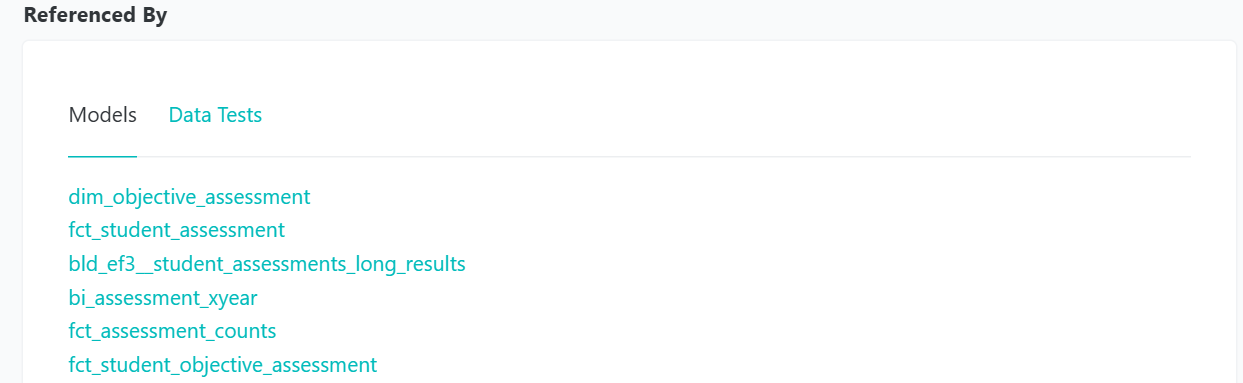
4. Referenced By#
Shows what tables or models use this table as input. Use this to trace what downstream uses of this table exist in the dbt project.
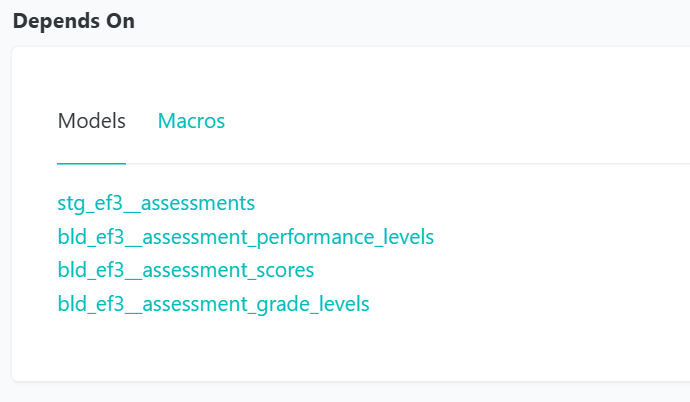
5. Depends On#
Shows what tables or sources this table is built from. Use this to trace where the data in this table came from.
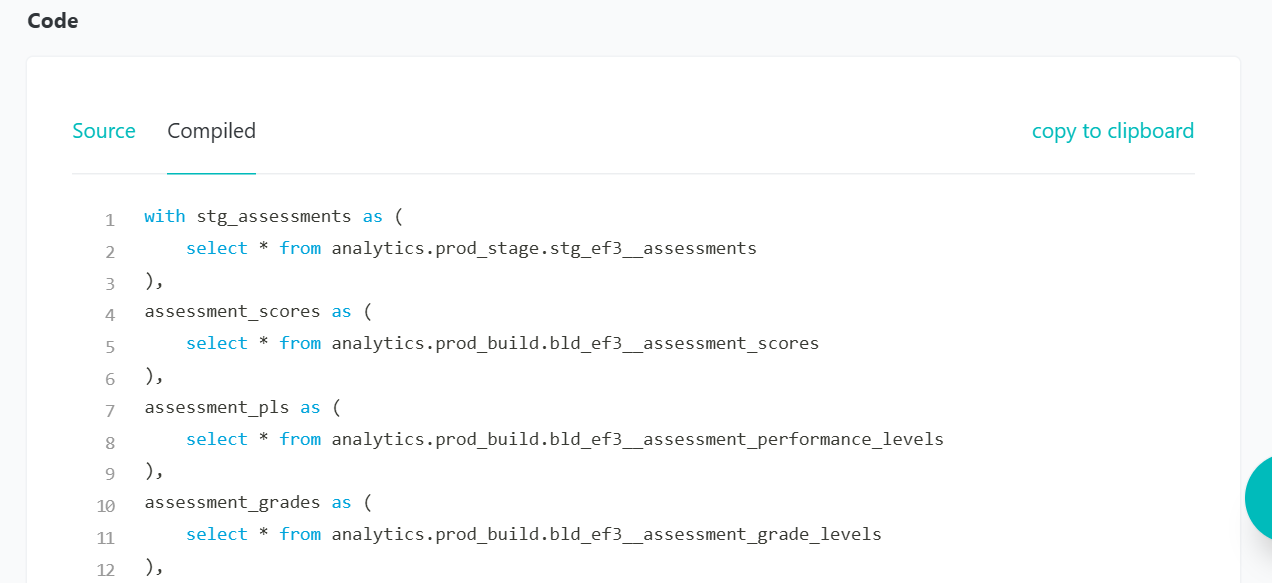
6. Code Tab#
Two sub-tabs:
- Source - The original dbt SQL code
- Compiled - The final SQL sent to the warehouse
Why both?
- Source shows dbt macros and Jinja templates
- Compiled shows the actual SQL that ran
- You can copy the compiled code into Snowflake/Databricks to see how the query works step-by-step
Lineage Graph (DAG)#
The lineage graph is one of the most powerful features of dbt docs!
Accessing the Lineage Graph#
Click the blue graph icon in the bottom right corner of any table page.
Navigating the Lineage#
Controls:
- Scroll - Zoom in/out
- Click and drag - Pan around the graph
- Click a node - Highlight that node and its connections
Filtering Options#
Use the sidebar to filter what's shown:
- + button - Expand to show more upstream dependencies
- - button - Expand to show more downstream dependents
- Select a number - Show N levels up/down
- Filters - Show only certain node types
Focusing on Nodes#
Right-click a node for options:
- Focus on this model - Show only this model's lineage
- Refocus - Reset the graph
- View documentation - Jump to the table page
Practical Use Cases#
Use Case 1: Understanding a Table#
Before querying fct_student_school_association:
- Search for the table in dbt docs
- Read the description and grain
- Review the columns and their descriptions
- Check the lineage to see what sources feed it
Use Case 2: Finding Related Data#
Need student demographics for an enrollment query?
- Open
fct_student_school_associationin dbt docs - View the lineage graph
- Look for dimension tables connected to it
- Find
dim_studentand see what columns it has
Use Case 3: Debugging Data Issues#
Data doesn't look right?
- Check the lineage graph
- Follow the transformations from source to final table
- Look at intermediate build tables
- Review the SQL in the Code tab
Use Case 4: Discovering Available Data#
What assessment data is available?
- Search for "assessment" in dbt docs
- Review tables and columns that match
- Check descriptions to understand differences
- View lineage to understand how they're related
- Query the tables you see in Snowflake to determine what's available.
Best Practices#
dbt Docs Best Practices
- Always check dbt docs before writing a query - Save time by understanding the data first
- Use the lineage graph - Visualize relationships between tables
- Read column descriptions - They contain important context
- Check the grain - Understand what each row represents
- Look at tests - Tests show data quality checks and expected values
- Use search - Don't browse manually, search for what you need
Practice Exercise#
Explore dbt Docs
- Access your dbt docs (hosted or local)
- Search for
dim_student - Read the table description and review columns
- Open the lineage graph
- Find what fact tables use
dim_student - Pick one fact table and review its documentation
- View the compiled SQL for that fact table
Congratulations!#
You've completed the Query and Analyze training series! You now have the foundational knowledge to:
- ✅ Understand the EDU data stack architecture
- ✅ Connect to your data warehouse
- ✅ Navigate the Snowflake interface
- ✅ Understand the warehouse structure
- ✅ Work with EDU table conventions
- ✅ Write SQL queries against EDU data
- ✅ Use dbt docs to explore and understand data
Next Steps#
Now you're ready to:
- Explore the Query and Analyze Reference for advanced topics
- Review the SQL Style Guide
- Check out Warehouse Query Guides for specific analytics patterns
- Connect a BI Tool to build dashboards
Happy querying! 🎉
« Your First Queries