How to connect with BI tools#
Security Requirements#
Using your personal credentials in a shared BI environment is not allowed. If the tool you're using will be accessible to users other than yourself, this qualifies as a shared environment. If you would like to connect an external BI tool to the EDU warehouse, and you're a Stadium partner working with Education Analytics, please open a ticket with your request at support@edanalytics.org. The EA team will be happy to work with you on a secure solution.
Power BI instructions#
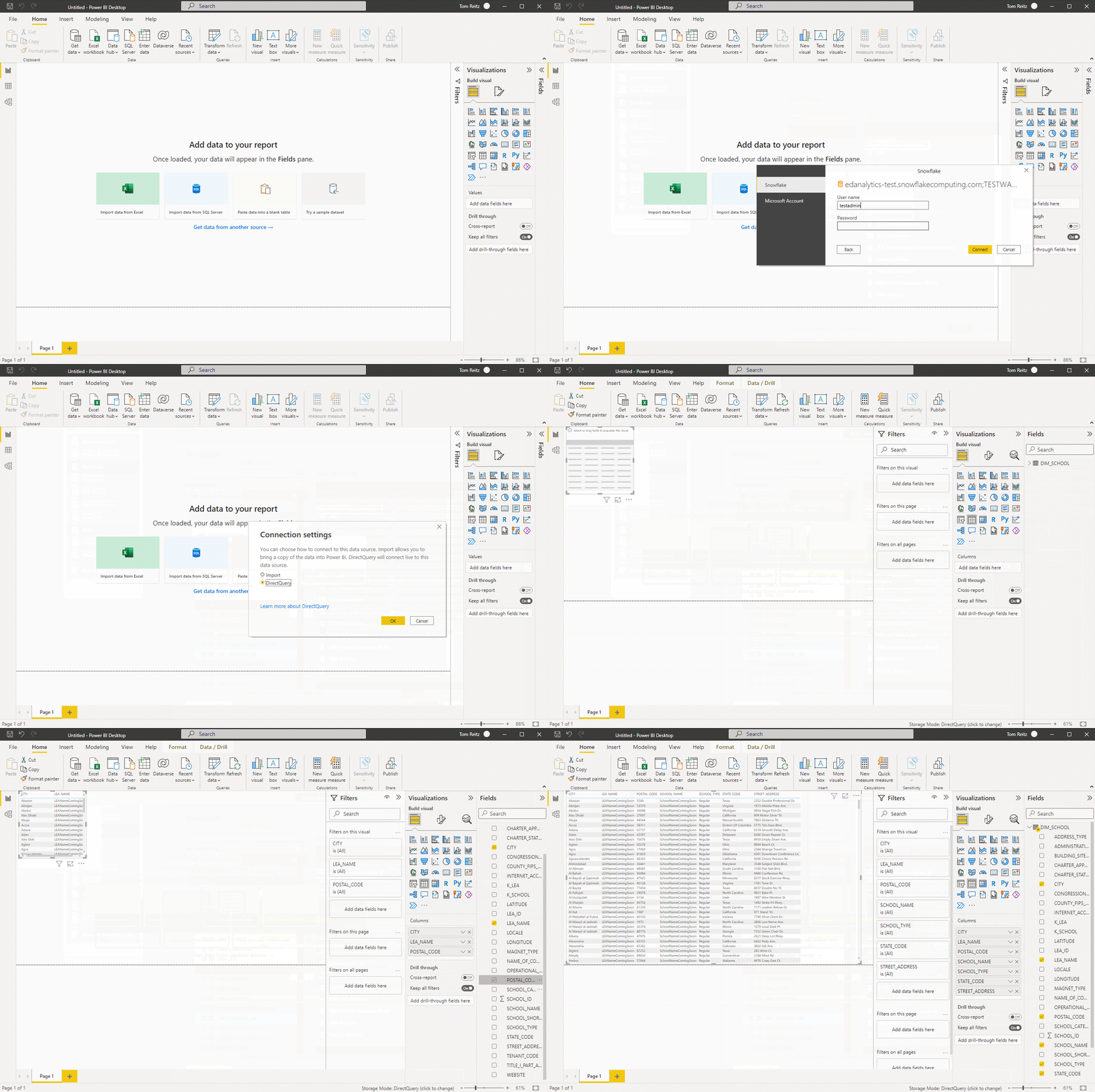
In PowerBI, create a new connection to a Snowflake database
You will see a dialog box with fields for "server" and "warehouse".
In server, put in your Snowflake host URL, this should look something like youragency.snowflakecomputing.com.
"Warehouse" is a Snowflake parameter to the database connection that determines the computational resources your connection will be using.
If you have been granted multiple warehouse roles in Snowflake, you need to pick one. You can see the warehouse options associated with your account in the Snowsight web interface in the upper right corner.
If you are unfamiliar with warehouses in Snowflake and you have been assigned multiple, ask the administrator who assigned your account which one to use.